%20(1).avif)


How to Configure Voiceflow Human Handoff
HitlChat powers a native Voiceflow chat widget on your website, allowing your Voiceflow bot’s conversation to be handed to a live agent the moment a human is needed.
What you need before adding Voiceflow website chat
- An existing Voiceflow agent (already built and published in Voiceflow).
- A HitlChat account (start a free trial if you don’t have one).
- Access to edit your website’s HTML (to paste the chat-widget snippet before
</body>).
Select Voiceflow in the HitlChat setup wizard
From the left menu, open Configuration. The Integration Setup tab loads with the heading “Let’s get you connected!” Under Select Integration Type, choose:
- Voiceflow: “Connect your existing Voiceflow chatbot to hitlchat and get conversation handover from your bot directly to your agents.” ← select this one.
- Botpress: for Botpress bots (covered in a separate guide).
- No chatbot: only if you want HitlChat for bulk WhatsApp messaging or the developer API, with no bot.
Click Next.
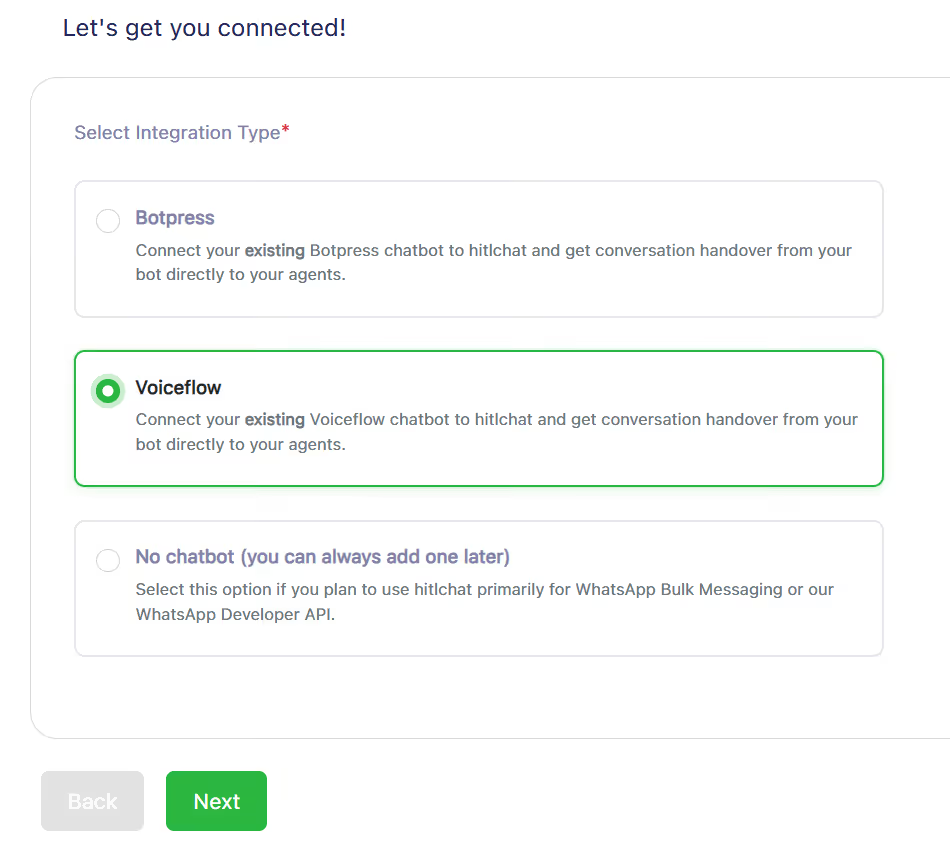
Selecting Voiceflow on the Integration Setup screen.
Choose WebChat as your channel
The next screen is headed “Choose how you’d like to connect your Chatbot”. The WhatsApp options at the top are for the WhatsApp channel (covered in a separate guide); scroll to the WebChat Connection group and select:
- WebChat: “Enables human hand off using a native webchat widget on your website.”
Click Next.
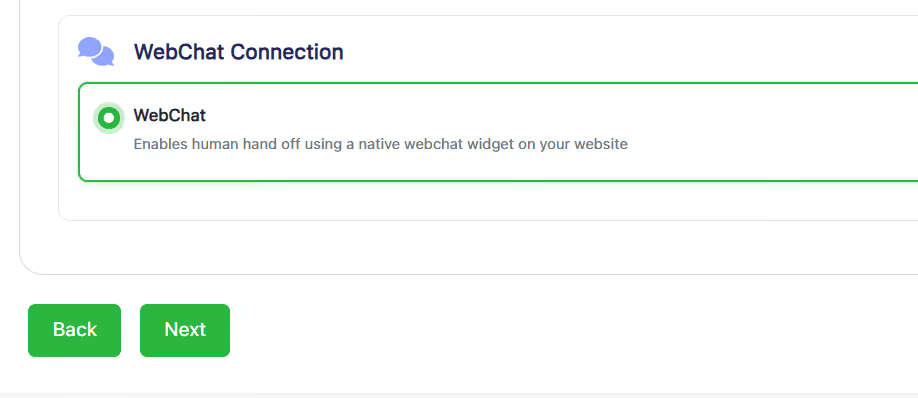
Selecting WebChat under the WebChat Connection group.
Link your Voiceflow agent and enable human handoff
On the “Voiceflow Configuration” screen, connect HitlChat to your Voiceflow agent so it can route website chat conversations to live agents. Fill in:
- Voiceflow API Key: in Voiceflow, open your agent’s workflow, click the Settings icon on the left, then API Keys. Copy the API key and paste it here.
- Bot Active toggle: leave on so your Voiceflow agent answers automatically. (You can pause it per-conversation later when a human takes over.)
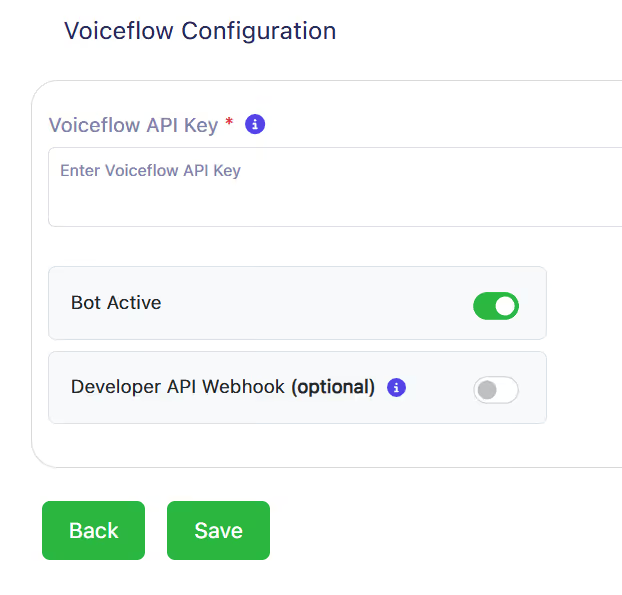
Click Save.
Add the chat widget to your website
A green “Configuration Successful” pop-up appears: “Your WebChat configuration has been successfully saved!” It shows a widget code snippet with a Copy to Clipboard button.
Copy that snippet and paste it before the closing </body> tag on every page where you want the chat widget to appear. The widget then loads on your site, and when a visitor’s chat needs a person, the conversation is handed to a live agent in your HitlChat Inbox.
Set the widget’s style, colours, and text in the Widget Script panel before copying; every option is covered in the next section.
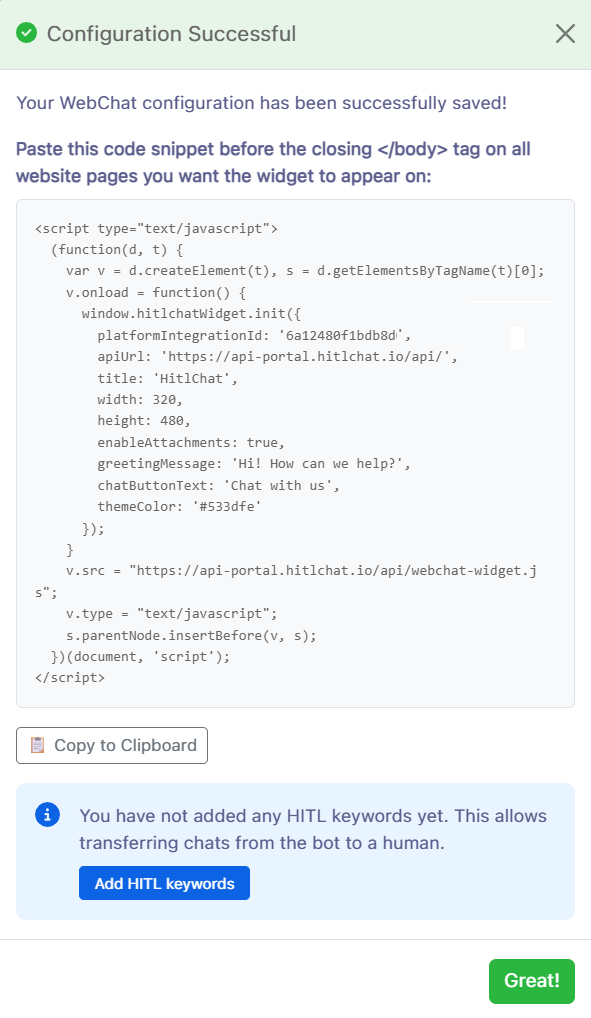
Refresh your site and open the widget to confirm your Voiceflow agent replies. You’re connected. 🎉
Configure the widget: style, size & branding
All of the widget’s appearance and behaviour settings are edited in the Widget Script panel: go to Integrations, find the WebChat row, and click Widget Script (the panel also opens right after setup). As you make changes, a live preview follows along: widget style previews in the bottom-right corner, popover previews centre-screen, and embed shows no preview since it renders inside a container you place on your own page.
Pick a widget style first
- Widget (bottom-right popup): a launcher button in the corner opens the chat panel above it.
- Popover (centered modal): clicking the launcher opens the chat as a centred overlay.
- Embed (inline on your page): the chat lives inside a container shipped with the snippet; put
<div id="hitlchat-chat">wherever it belongs on the page. There is no launcher button in embed style.
The full settings list
| Setting | What it controls | Default |
|---|---|---|
| Widget style | Widget, Popover, or Embed (above) | Widget |
| Header title | The name shown in the chat header (up to 60 characters) | HitlChat |
| Greeting message | The first message visitors see (up to 300 characters) | “Hi! How can we help?” |
| Chat button text | The launcher label, for widget and popover styles (up to 40 characters) | “Chat with us” |
| Header colour | The chat header, as a hex colour | #533dfe |
| Buttons colour | Launcher, send, attach, mic, and reply buttons | Matches the header colour |
| Width & height | Panel size in pixels (width 280–1000, height 360–1200) | 420 × 580 |
| Attachment uploads | Shows or hides the file-upload button | On |
| Voice transcription | Adds a record button so visitors can dictate their message | Off |
Voiceflow, website chat & human handoff FAQs
Do I need to rebuild my Voiceflow agent to add website chat?
No. HitlChat connects your existing Voiceflow agent: you copy your Voiceflow API key into HitlChat, then drop the widget snippet on your site.
Where do I add the chat widget to my website?
Paste the widget snippet from the success screen before the closing </body> tag on every page where you want the widget to appear. On most site builders this goes in a global “custom code / footer” area so it loads site-wide.
Can a human agent take over from the Voiceflow agent in website chat?
Yes, that’s HitlChat’s main purpose. You can pause the bot on any conversation and reply as a live agent, or use HITL keywords to trigger handoff automatically.
Where do I find my Voiceflow API key?
In Voiceflow, open your agent’s workflow, click the Settings icon on the left, then API Keys. Copy the key shown and paste it into the Voiceflow Configuration step in HitlChat.
Can I customise how the chat widget looks?
Yes. In the Widget Script panel you choose the display style (bottom-right widget, centred popover, or inline embed), the title, greeting, and launcher text, header and button colours, panel size, plus attachment and voice-transcription toggles. Re-copy the snippet after saving changes.
What does the “Bot Active” toggle do?
When it’s on, your Voiceflow agent answers website chat messages automatically. You can still pause the bot on individual conversations when an agent steps in.
Why isn’t my Voiceflow agent replying after setup?
Check that the Voiceflow API key was pasted correctly, that your agent is published in Voiceflow, that the Bot Active toggle is on, and that the widget snippet is installed on the page you’re testing.
How do I set up HITL keywords to hand off a chat to a human?
In HitlChat, go to Bot Settings and add your HITL keywords: words like “agent” or “human” that, when a visitor sends them, automatically transfer the website chat conversation from your Voiceflow agent to a live agent.
Where do handed-off website chat conversations appear for my team?
In the HitlChat Inbox, a shared inbox where your agents see live conversations, pick them up, reply with text or media, and transfer chats between teammates. Each team member gets their own login under User Access.
Can I use the same Voiceflow agent for website chat and WhatsApp?
Yes. Alongside WebChat, HitlChat connects the same Voiceflow agent to WhatsApp, all handled from the same shared inbox.
Related guides
See also: Voiceflow WebChat Handoff
Stories from real businesses
.svg)
"WhatsApp is where most of our online customer conversations happen. Our Voiceflow assistant handles the basic questions really well, but when questions get more complicated hitlchat allows our team to jump in instantly without having to move the customer to another channel. It feels like true live chat inside WhatsApp and we’ve seen higher conversions because of it"
"The hitlchat setup is super simple, and its easy to use! Most of our clients run small teams handling WhatsApp conversations powered by a Voiceflow bot. hitlchat gives them one shared workspace to manage all their conversations. Being able to step into bot conversations directly inside WhatsApp has transformed their support workflows."
"We've been building Voiceflow WhatsApp assistants for our clients across various industries (healthcare, ecommerce, restaurants etc) for a few years now. We had been looking for a way to route conversations from the Voiceflow assistant to live human agent for some time. Eventually we found out about hitlchat and honestly its been a gamechanger for us ever since. Our clients love it, and as a result we love it!"
Ready to try hitlchat ?
Create Your Free Account Now

No credit card required