%20(1).avif)


How to Connect Voiceflow to WhatsApp & Enable Human Handoff (HITL)
To connect your Voiceflow agent to WhatsApp within HitlChat, simply choose a WhatsApp connection method: Facebook login (oAuth), manual API credentials, or QR code. HitlChat then sits between WhatsApp and your Voiceflow agent, allowing the conversation to be handed to a live agent the moment a human is needed.
What you need before connecting Voiceflow to WhatsApp
- An existing Voiceflow agent (already built and published in Voiceflow).
- A HitlChat account: start a free trial if you don’t have one.
- For the recommended method: a Facebook account with access to (or the ability to create) a WhatsApp Business number.
Which WhatsApp connection method should I pick?
HitlChat offers three ways to connect WhatsApp. Choose whichever fits your setup:
Facebook Login Recommended
The quickest, official route. Ideal for most users: you just sign in with Facebook.
Manual WhatsApp API
For teams already on the WhatsApp Business API in Meta. Needs your Phone Number ID, WhatsApp Business Account ID and Permanent Access Token.
WhatsApp QR Code
Best for bot chats and moderate volume (not high-volume bulk). Connect by scanning a code with your phone.
Select Voiceflow in the HitlChat setup wizard
From the left menu, open Configuration. The Integration Setup tab loads with the heading “Let’s get you connected!” Under Select Integration Type, choose:
- Voiceflow: “Connect your existing Voiceflow chatbot to hitlchat and get conversation handover from your bot directly to your agents.” ← select this one.
- Botpress: for Botpress bots (covered in a separate guide).
- No chatbot: only if you want HitlChat for bulk WhatsApp messaging or the developer API, with no bot.
Click Next.
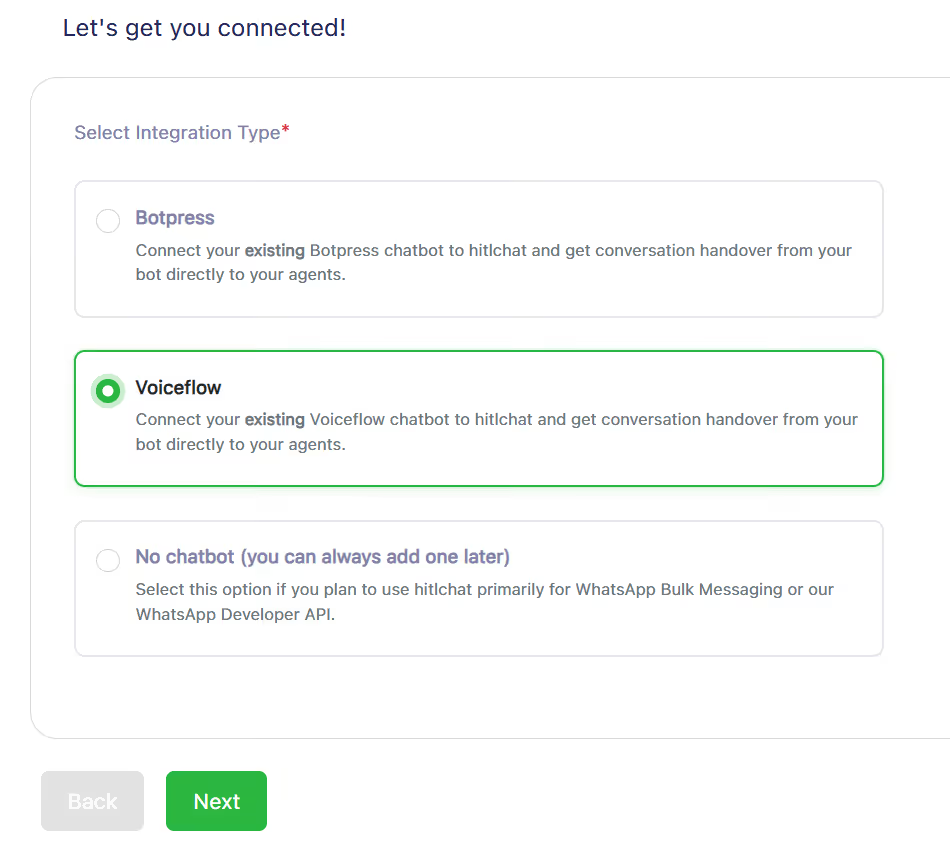
Choosing your integration type on the Integration Setup screen.
Choose how to connect Voiceflow to WhatsApp
Next you’ll see “Choose how you’d like to connect your Chatbot” with a WhatsApp Connection Options card. The three options are:
- WhatsApp Business API – Facebook Login (recommended): “Instantly connect a WhatsApp Business number using your Facebook login.” HitlChat handles the Meta setup for you.
- WhatsApp Business API – Manual Configuration: for users who already hold their WhatsApp Business ID, Phone Number ID and Access Token from Meta.
- QR Code Connection: “Connect to WhatsApp by scanning a QR code using your phone. This method does not use the WhatsApp Business API.” Suited to bot conversations and moderate messaging; for high-volume bulk use the official API to avoid number bans.
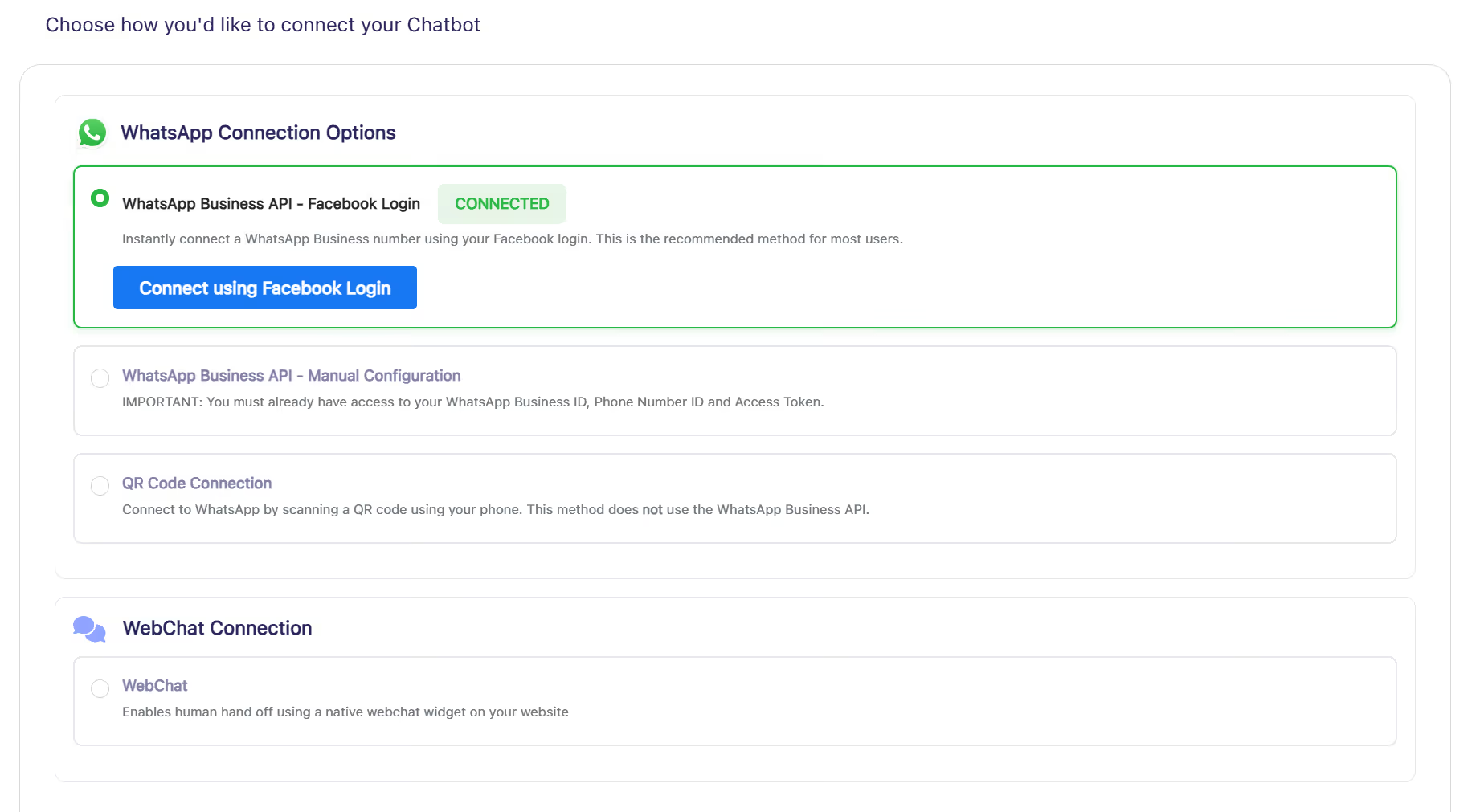
The WhatsApp connection options. Pick the path below that matches your choice.
Connect your WhatsApp number with Facebook Login
Choose WhatsApp Business API – Facebook Login. A blue Connect using Facebook Login button appears. Click it, confirm on the brief info pop-up, and a Facebook window opens. Sign in, then pick an existing WhatsApp Business number or create one by following Meta’s prompts.
On success you’ll see the green message “Almost done.. Click ‘Next’ to continue.” Click Next, then jump to Step 4 below.
Connect WhatsApp with manual API credentials
Enter your WhatsApp Business API credentials from Meta
Choose WhatsApp Business API – Manual Configuration and click Next. The “WhatsApp Business API Credentials (Meta)” screen asks for three values from your Meta account:
- Phone Number ID: in Meta, open your app → WhatsApp ▸ API Setup, choose your number in the From dropdown; the Phone Number ID is shown there.
- WhatsApp Business Account ID: shown on the same API Setup screen.
- Permanent Access Token: your long-lived Meta token. The field includes an “Instructions to create an Access Token” video link.
Click Next.
Connect the Meta webhook to HitlChat
The following screen, “Meta Business App Configuration”, gives you two values to paste into Meta so WhatsApp can forward messages to HitlChat:
- Meta Webhook URL: copy it. In Meta: app → WhatsApp ▸ Configuration, paste it into the Callback URL box.
- Meta Verify Token: copy it (the value is HitlChat) into the Verify token box.
Then in Meta click Verify and Save, scroll to the webhook subscriptions list, and switch the messages webhook to Subscribed.
Click Next and continue to Step 4.
Connect WhatsApp by scanning a QR code
Scan the QR code to link your WhatsApp number
Choose QR Code Connection and click Next. On the “Connect to WhatsApp using QR Code” screen, open WhatsApp on your phone → Settings ▸ Linked Devices ▸ Link a Device, and scan the code shown.
Once it shows connected, click Next and continue to Step 4.
Link your Voiceflow agent and enable human handoff
All three paths finish here. This final screen, “Voiceflow Configuration”, connects HitlChat to your Voiceflow agent so it can route WhatsApp conversations to live agents. Fill in:
- Voiceflow API Key: in Voiceflow, open your agent’s workflow, click the Settings icon on the left, then API Keys. Copy the API key and paste it here.
- Bot Active toggle: leave on so your Voiceflow agent answers automatically. (You can pause it per-conversation later when a human takes over.)
- Developer API Webhook (optional, WhatsApp Business API connections only): enable this only if you want HitlChat to also forward inbound messages and delivery statuses to your own URL.
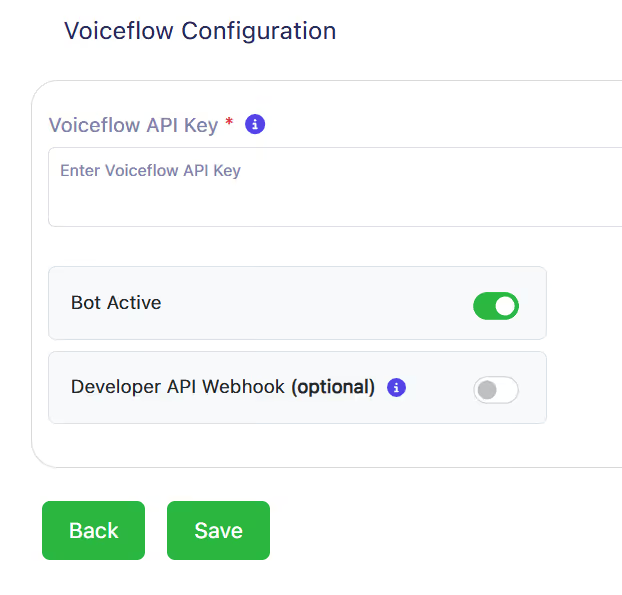
Click Save.
Success: Voiceflow is now connected to WhatsApp
A green “Configuration Successful” pop-up appears: “You’re ready to start sending and receiving messages! Try sending a test message to your WhatsApp number.”
If you haven’t added any handoff keywords yet, the pop-up also prompts you to Add HITL keywords, the words that transfer a chat from the bot to a human. Click Go to Inbox to start handling conversations.
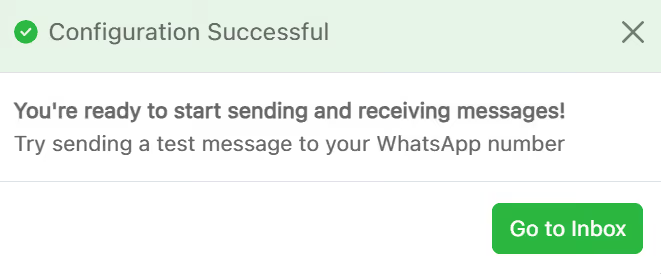
Send a WhatsApp message to your number to confirm your Voiceflow agent replies. You’re connected. 🎉
Stories from real businesses
.svg)
"WhatsApp is where most of our online customer conversations happen. Our Voiceflow assistant handles the basic questions really well, but when questions get more complicated hitlchat allows our team to jump in instantly without having to move the customer to another channel. It feels like true live chat inside WhatsApp and we’ve seen higher conversions because of it"
"The hitlchat setup is super simple, and its easy to use! Most of our clients run small teams handling WhatsApp conversations powered by a Voiceflow bot. hitlchat gives them one shared workspace to manage all their conversations. Being able to step into bot conversations directly inside WhatsApp has transformed their support workflows."
"We've been building Voiceflow WhatsApp assistants for our clients across various industries (healthcare, ecommerce, restaurants etc) for a few years now. We had been looking for a way to route conversations from the Voiceflow assistant to live human agent for some time. Eventually we found out about hitlchat and honestly its been a gamechanger for us ever since. Our clients love it, and as a result we love it!"
Ready to try hitlchat ?
Create Your Free Account Now

No credit card required