How to Embed the HitlChat Inbox in Your CRM or App
You can drop the entire HitlChat inbox straight into your own CRM, help desk, or web app using a single iframe URL — no SDK, no rebuild. A few query parameters let you hide the menus for a clean native look, brand the login screen, and even open one specific contact’s conversation. This guide covers every parameter, the three most common embedding patterns, and how login and sessions behave inside an iframe.
What you can embed
The embed is just the HitlChat inbox loaded at a special URL inside an <iframe>. By toggling a few parameters you control exactly how much of the interface your users see:
- A full shared inbox — conversation list, live chat thread and contact details — minus the HitlChat top menu, so it feels native inside your product.
- A stripped-back chat panel with the side panels hidden, when your own app already handles navigation.
- A single conversation, deep-linked to one contact — perfect for a “Messages” tab on a contact’s record in your CRM.
Before you start
- A HitlChat account with a connected WhatsApp number.
- Somewhere to place an
<iframe>— a page in your CRM, portal, or web app. - The login the embedded users will sign in with (your own account, a team member, or an agency client account).
The embed URL
Everything is driven by one URL — the inbox page plus query parameters. This is the value you put in your iframe’s src.
A minimal embed that simply hides the HitlChat top banner looks like this:
<iframe
src="https://portal.hitlchat.io/chat-data?hidetopbanner=true&agency=acme"
style="width:100%;height:100%;border:0;"
allow="microphone; camera; clipboard-write">
</iframe>
Add or remove parameters from the next section to get the exact layout you want. Throughout this guide we use a demo agency code of acme — swap in your own.
The embed parameters
Append these to the URL with ? for the first and & between the rest. The order doesn’t matter, and a parameter is only active when its value is exactly true.
Display
hidetopbanner=true— hides the top navigation banner (the HitlChat menu bar). This is the key one for a native feel.hideleftmenu=true— hides the left panel. On the inbox that panel is the conversation list, so use this when your own app provides the contact navigation.hidecontactdetails=true— hides the right-hand contact details sidebar.
Targeting
conversation=<value>— opens a single conversation. Accepts the customer’s WhatsApp number (international format, digits only) or the conversation’s internal id. See Use case 3.
Branding
agency=<your-agency-code>— applies your agency logo and brand colour to the login screen. See Branding the login screen.
false) keeps that panel visible — so you only ever need to add the ones you want to hide.Use case 1 · A full embedded inbox
The most common setup: show the complete shared inbox — conversation list on the left, the live chat in the middle, and contact details on the right — but drop the HitlChat top menu so it sits seamlessly inside your product. You hide only the top banner:
Your users get a fully functional WhatsApp team inbox — switching conversations, replying, assigning, viewing contact info — that looks like part of your own application.
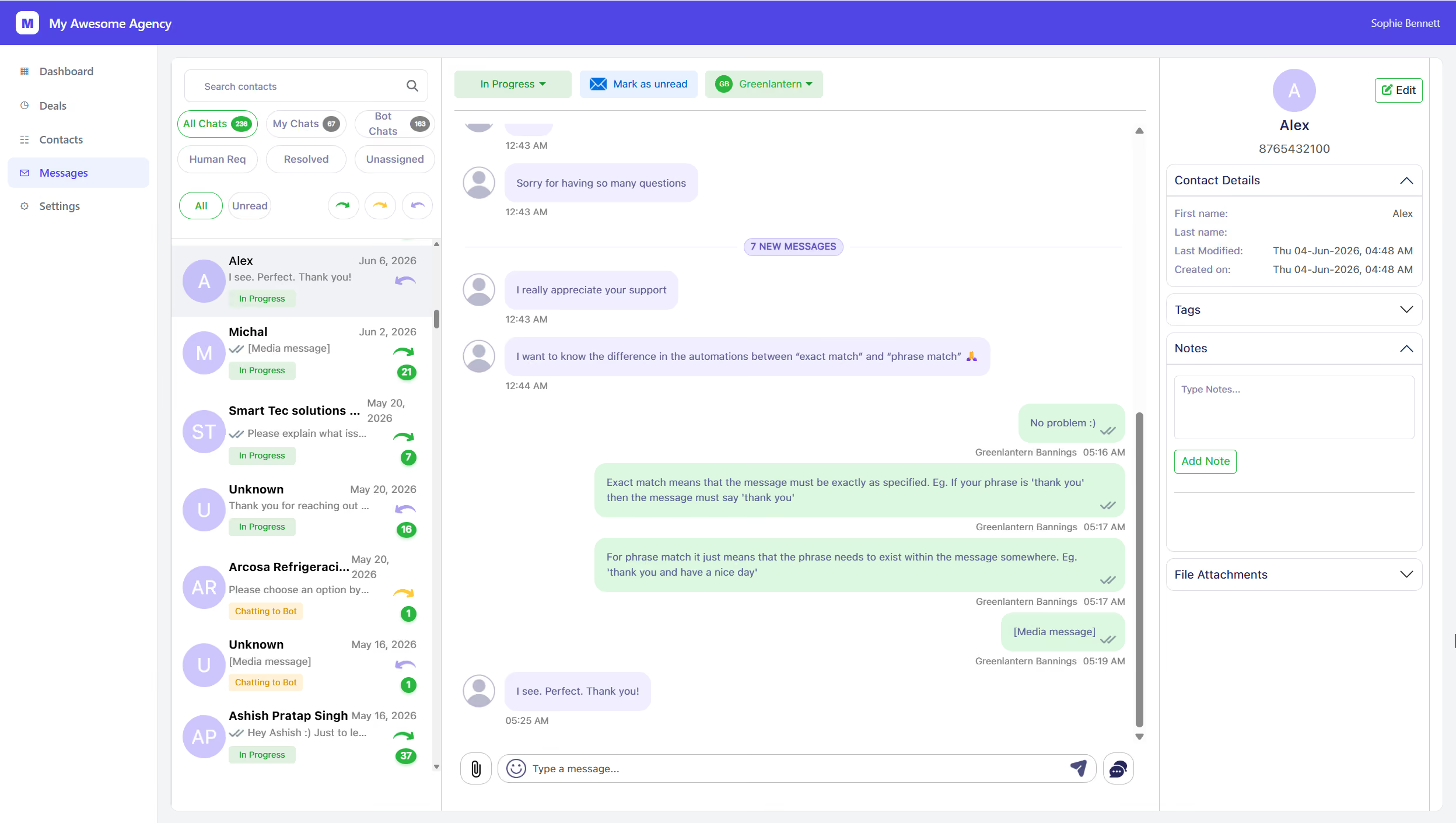
Team inbox mode: the full bannerless inbox embedded inside a CRM, with the conversation list and contact details still visible.
Use case 2 · Trim the panels
If your own app already provides navigation or you want a more focused view, hide the side panels too. Mix and match the three display parameters:
# Inbox with the conversation list, but no contact-details sidebar
.../chat-data?hidetopbanner=true&hidecontactdetails=true&agency=acme
# Just the chat thread — no top banner, no list, no details
.../chat-data?hidetopbanner=true&hideleftmenu=true&hidecontactdetails=true&agency=acme
hideleftmenu hides the conversation list on the inbox. Only hide it when your application drives which conversation to show — which is exactly what the next use case does.Use case 3 · One contact’s conversation
This is the powerful one for CRMs. When a user opens a contact’s record in your app, build an iframe that loads only that contact’s WhatsApp conversation — no list, no menus. Hide the left panel and pass the contact’s number in the conversation parameter:
Generate the src dynamically from the contact your user clicked:
// e.g. when rendering a contact's "Messages" tab in your CRM
const number = contact.whatsappNumber; // digits only, e.g. "447700900123"
const src =
"https://portal.hitlchat.io/chat-data" +
"?hidetopbanner=true&hideleftmenu=true" +
"&conversation=" + number +
"&agency=acme";
iframe.src = src;
The conversation value accepts the customer’s WhatsApp number (international format, digits only — no + or spaces) or the conversation’s internal id. HitlChat opens that thread even if it isn’t in the most recent list, and only ever resolves conversations belonging to the signed-in account.
hidecontactdetails out, or add hidecontactdetails=true for a pure single-thread view.
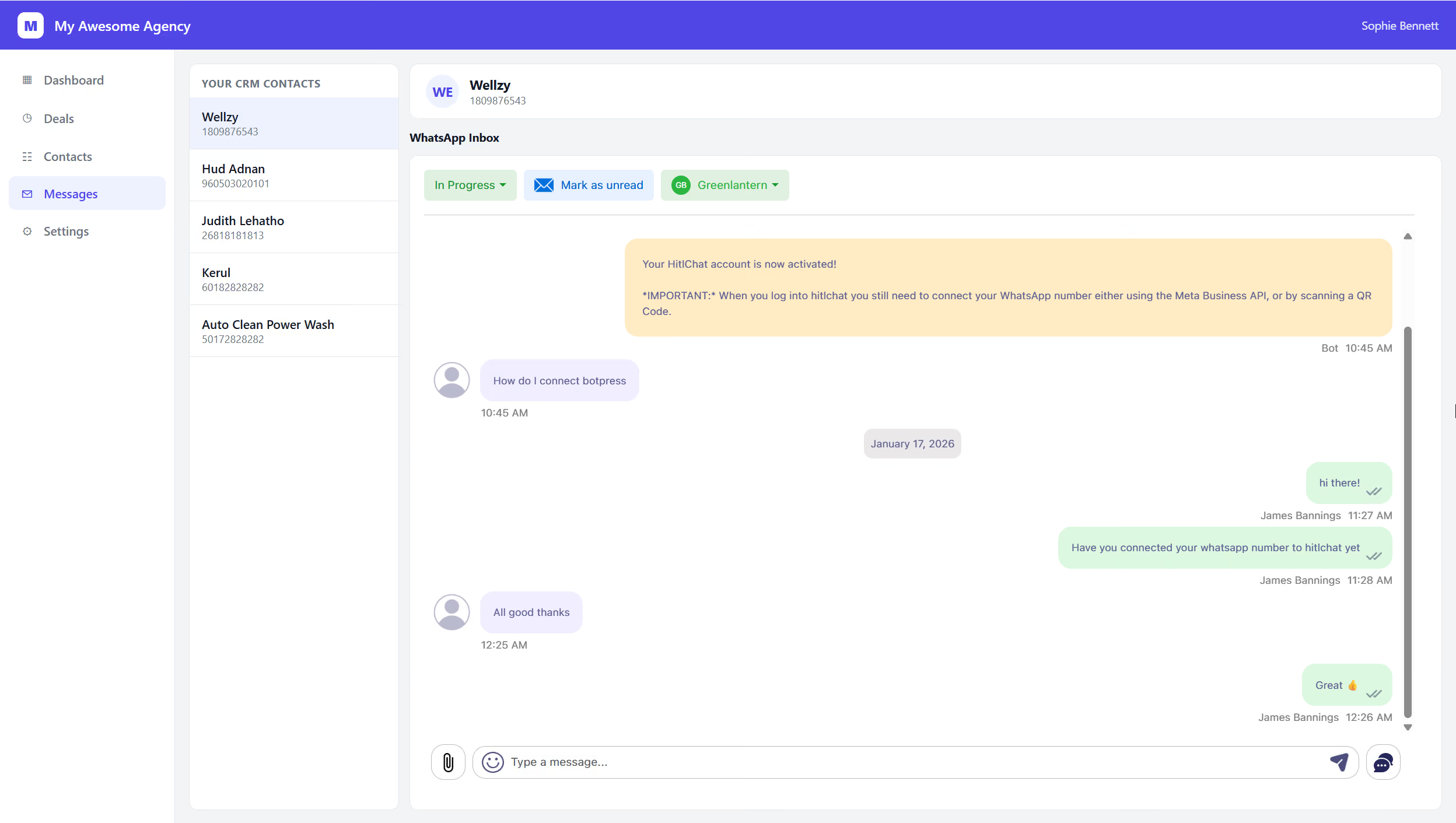
Contact-specific mode: clicking a contact in the CRM loads only that customer’s conversation, with the list hidden.
Branding the login screen for your agency
If an embedded user isn’t signed in yet, the iframe shows the HitlChat login screen. Add the agency parameter and that login screen is white-labelled with your agency’s logo and brand colour instead of HitlChat’s:
The agency value can be your agency code (e.g. acme) or your agency’s record id. You’ll find these in your agency settings. The same value works on the embed URL, so you only ever set it once.
After the user logs in, HitlChat sends them straight back to the bannerless inbox they were heading to — every embed parameter (including a conversation deep-link) is preserved through login, so they land exactly where you intended.
Staying logged in inside the iframe
An embedded inbox is meant to behave like a permanent panel in your app, so HitlChat treats it differently from a normal browser tab: when the inbox is loaded in embed mode (any hide parameter present), the usual 2-hour inactivity auto-logout is switched off. Your users sign in once and the panel stays connected.
The sign-in itself is long-lived, so in practice users won’t be bounced back to the login screen during normal use. They’ll only need to log in again if they explicitly log out, or if they sign in to the same account somewhere else (which ends the older session).
Embedding FAQs
How do I embed the HitlChat inbox in my own app?
Place an <iframe> in your page and point its src at https://portal.hitlchat.io/chat-data with the parameters you want — for example ?hidetopbanner=true&agency=acme for a full inbox without the HitlChat top menu.
How do I hide the HitlChat menu so it looks native?
Add hidetopbanner=true to hide the top navigation banner. You can also add hideleftmenu=true to hide the conversation list and hidecontactdetails=true to hide the right-hand contact-details panel.
What does each hide parameter do?
hidetopbanner hides the top menu bar, hideleftmenu hides the left conversation list, and hidecontactdetails hides the right contact-details sidebar. Each is only active when set to true; leave one out to keep that panel visible.
Can I open just one contact’s conversation in the iframe?
Yes. Add conversation= followed by the customer’s WhatsApp number (digits only) or the conversation id, and add hideleftmenu=true to hide the list. The iframe then shows only that contact’s chat — ideal for a “Messages” tab on a CRM record.
What value does the conversation parameter accept?
It matches the customer’s WhatsApp number in international format (digits only, no + or spaces) or the conversation’s internal id. HitlChat resolves the thread even if it isn’t in the latest list, and only ever opens conversations belonging to the signed-in account.
Can I brand the login screen with my own logo?
Yes. Add agency= followed by your agency code (or agency id) to the URL. The login screen then shows your agency’s logo and brand colour instead of HitlChat’s. The same value works on the embed URL.
What happens if the user isn’t logged in?
The iframe shows the login screen (branded if you passed the agency parameter). After signing in, the user is taken straight back to the bannerless inbox URL they were heading to — all parameters, including any conversation deep-link, are preserved.
Will embedded users get logged out after a while?
No. In embed mode the 2-hour inactivity auto-logout is disabled, and the sign-in is long-lived, so the panel stays connected. Users only need to log in again if they log out themselves or sign in to the same account elsewhere.
Does the order of the parameters matter?
No. You can list the parameters in any order. Just start the query string with ? and separate parameters with &.
Why does my embedded inbox show up blank?
That usually means the page isn’t permitted to frame HitlChat. The inbox can only render inside iframes on approved domains — contact HitlChat support with the domain you’ll embed on so it can be allowed.
Related guides
How to Use the HitlChat Inbox
Get to know the shared inbox you’re embedding — filters, replying, assigning agents, and switching conversations.
Read guide →How to Manage Agency Clients in HitlChat
Invite and manage the client accounts that sign in to your white-labelled, embedded inbox.
Read guide →Stories from real businesses
Daniel Ortega
eCommerce Ops Manager
"WhatsApp is where most of our online customer conversations happen. Our Voiceflow assistant handles the basic questions really well, but when questions get more complicated hitlchat allows our team to jump in instantly without having to move the customer to another channel. It feels like true live chat inside WhatsApp and we’ve seen higher conversions because of it"
Sanjay Mehta
Conversational AI Agency
"The hitlchat setup is super simple, and its easy to use! Most of our clients run small teams handling WhatsApp conversations powered by a Voiceflow bot. hitlchat gives them one shared workspace to manage all their conversations. Being able to step into bot conversations directly inside WhatsApp has transformed their support workflows."
Lucas Bennett
Voiceflow Developer
"We've been building Voiceflow WhatsApp assistants for our clients across various industries (healthcare, ecommerce, restaurants etc) for a few years now. We had been looking for a way to route conversations from the Voiceflow assistant to live human agent for some time. Eventually we found out about hitlchat and honestly its been a gamechanger for us ever since. Our clients love it, and as a result we love it!"
Ready to try hitlchat ?
Create Your Free Account Now
No credit card required